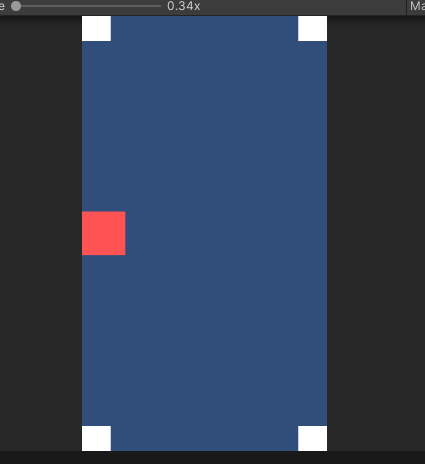
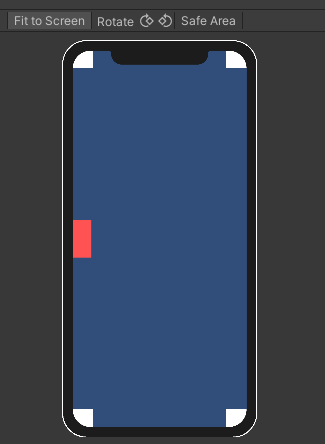
UI와 별개로 메인 카메라에 잡히는 스프라이트 위치도
분명 기기별 위치가 다르게 보이기 때문에 대응해줘야 한다.
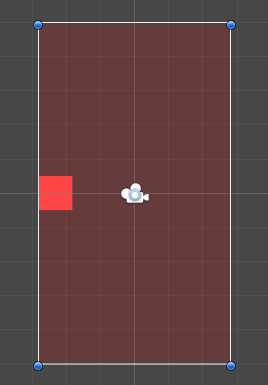

Sprite를 하나 생성해 Main Camera화면에 맞춰 Scale 값을 조절한다. (이 스프라이트가 기준점)
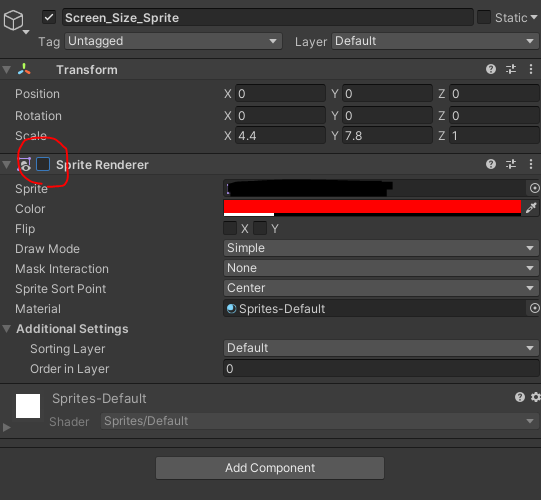
그리고, Sprite Renderer를 비활성화 시킨다.
using System.Collections;
using System.Collections.Generic;
using UnityEngine;

public class CameraResolution : MonoBehaviour {

    public SpriteRenderer rink;

    // Use this for initialization
    void Start()
    {
        float screenRatio = (float)Screen.width / (float)Screen.height;
        float targetRatio = rink.bounds.size.x / rink.bounds.size.y;

        if (screenRatio >= targetRatio)
        {
            Camera.main.orthographicSize = rink.bounds.size.y / 2;
        }
        else
        {
            float differenceInSize = targetRatio / screenRatio;
            Camera.main.orthographicSize = rink.bounds.size.y / 2 * differenceInSize;
        }
    }

}
Main Camera에 CameraResolution 스크립트를 생성하고, 코드를 작성한다.
rink에 앞서 제작한 Sprite를 넣어준다.
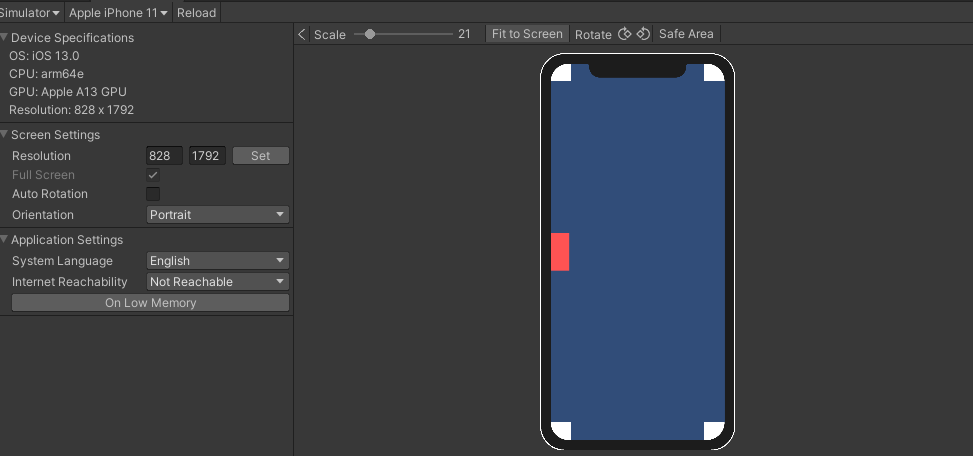
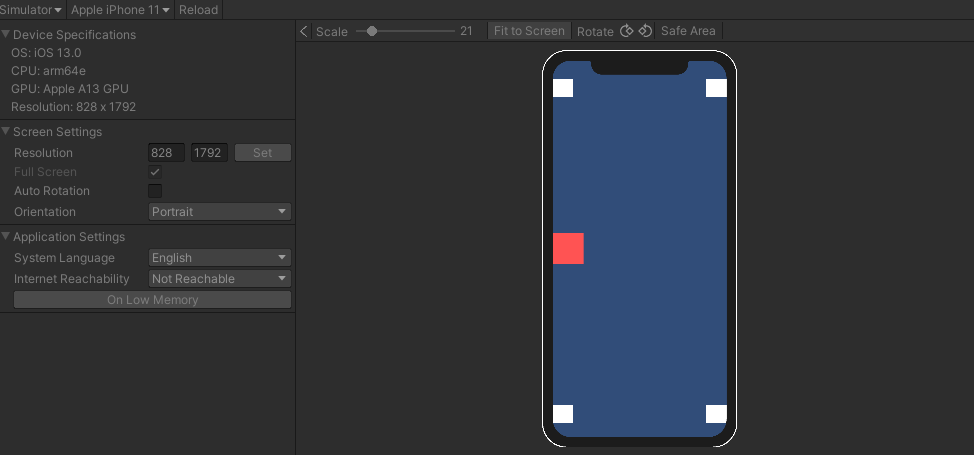
에디터의 플레이 버튼을 눌러주면 스프라이트도 해상도별로 대응한다.
'Study > Unity' 카테고리의 다른 글
| 맥북 에어에서 M1 유니티 VS Code 설정하기 (Macbook Air M1 Unity VS Code Setting) (0) | 2022.08.03 |
|---|---|
| 유니티 SNS 공유 빌드 에러 : android resource linking failed: unexpected element <queries> found in <manifest> (0) | 2021.08.03 |
| 유니티 구글 플레이 게임 연동하기 (Unity GPGS Plugin) (0) | 2021.02.17 |
| 유니티 UI 노치 대응 (Unity UI Notch Devices) (0) | 2021.02.16 |


